- Log in using your regular uni and network password here: https://business.columbia.edu/user/login.
- Click on the User Profile tab in the top black toolbar and then click View Profile.
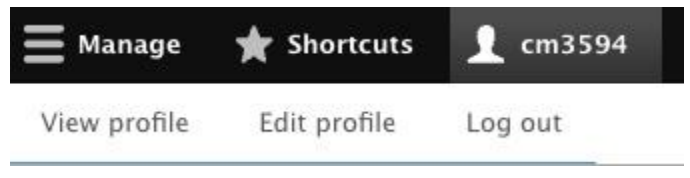
- Once you click through, look for your User Profile link and click it. This will take you to your user profile.
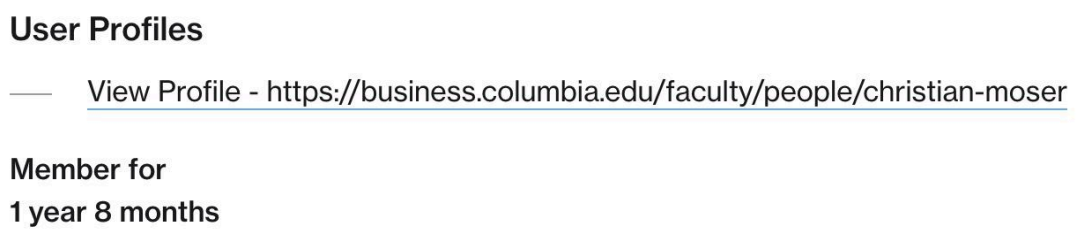
- Once you’re on your profile, look next to your name to see the Edit Tab. Click Edit.
- Now you’ll be able to edit the following information on your profile:
- General Tab
- Gender (Optional)
- Pronouns (Optional)
- Biography
- Personal Website
- Joined CBS Date. This will default to the start date of your most recent position. You can adjust this to your earliest start date.
- Faculty Information Tab
- CV: You can upload a PDF.
- General Office Hours: (Optional).
- Areas of Expertise: (Optional); check off whichever ones are applicable.
- Featured Research: Add any Citations to your profile that are already uploaded to the CBS system. To add, start typing the name of the paper, journal article, or other work. Click on the correct item once it is displayed in the field so that the system receives it.
- Note: You can add multiple Citations by clicking the Add Another Item button and repeating as many times as needed.
- General Tab
The following guide below helps demonstrate how to login and add content within the CBS content management system. If you have any further questions, please reach out to the Web Services team.